
Download VacationPlanner – Mac travel itinerary builder, education & reference tool
VacationPlanner is a dedicated Mac‑only application created by Jeff Carter that helps users design detailed travel itineraries while learning about geography. Falling under the Education & Reference category with a sub‑category of Geography, the software blends practical trip planning with interactive maps, cultural facts, and budgeting tools. Although the install size isn’t publicly listed, the program is lightweight enough to run smoothly on macOS X and earlier versions. The current version, 2, was last updated on January 4 2017, and despite its modest download history, VacationPlanner offers a unique blend of educational content and real‑world planning features that make it a handy companion for students, families, and travel enthusiasts alike. This review explores the key features, installation steps, system compatibility, and the pros and cons you should consider before hitting the download button.
Feature Overview – What VacationPlanner Brings to the Table
- Interactive World Maps: Drag‑and‑drop destinations onto a global map, with real‑time zoom and satellite view.
- Itinerary Builder: Create day‑by‑day schedules, assign activities, and set travel times automatically.
- Budget Calculator: Input accommodation, transport, and meal costs to generate a comprehensive expense report.
- Geography Facts & Trivia: Each destination includes concise cultural, historical, and geographic snippets sourced from reputable databases.
- Export Options: Save itineraries as PDF, CSV, or printable formats; share via email directly from the app.
- Offline Mode: All map data and educational content are cached, allowing planning without an internet connection.
- Customizable Templates: Choose from pre‑made travel templates (family vacation, backpacking, study abroad) to speed up the planning process.
- Secure Data Handling: All user data is stored locally with optional encrypted backups.
Installation & Usage – Step‑by‑Step Guide for Mac Users
Installing VacationPlanner on a Mac is straightforward, even for users who are not technically inclined. Follow these steps to get the app up and running:
- Download the installer: Click the “Download VacationPlanner” button on the official product page. The file will be a .dmg package sized for Mac OS X.
- Open the DMG: Double‑click the downloaded file; macOS will mount a virtual disk on your desktop.
- Drag to Applications: In the window that appears, drag the VacationPlanner icon into the Applications folder shortcut.
- Verify Security Settings: If you receive a warning about an unidentified developer, go to System Preferences → Security & Privacy → General and click “Open Anyway.”
- Launch the app: Navigate to your Applications folder and double‑click VacationPlanner. The first launch may prompt you to grant access to your Documents folder for export features.
- Initial setup: The wizard will ask for your preferred language (English only) and whether you’d like to enable automatic backups to iCloud.
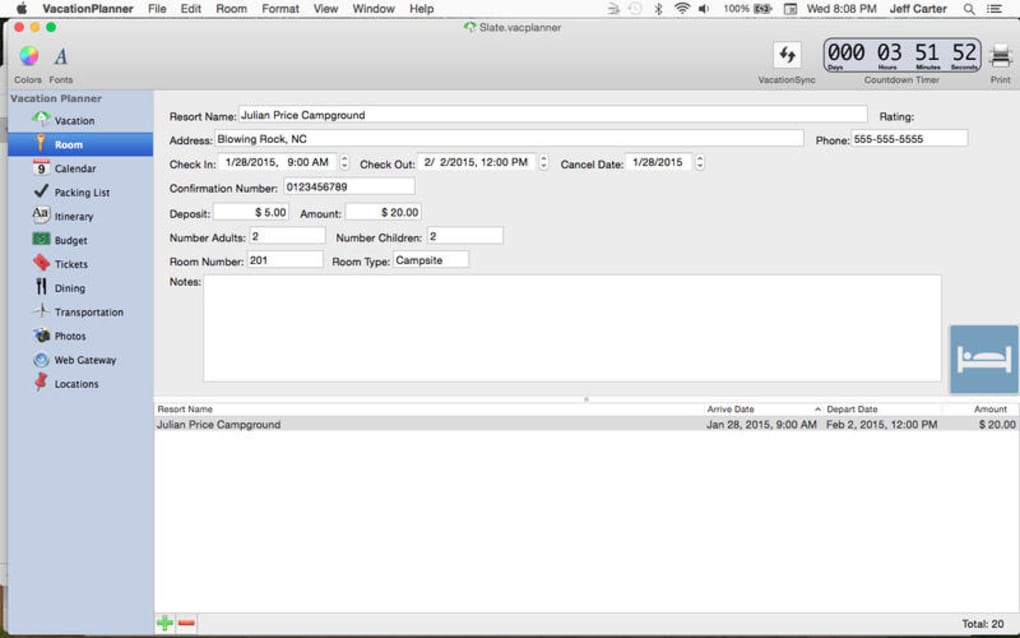
- Start planning: Use the toolbar to add a new trip, select a world map, and begin pinning locations. The built‑in tutorial walks you through creating your first itinerary in under five minutes.
Once installed, VacationPlanner runs efficiently on both Intel and Apple Silicon Macs thanks to native support for macOS 10.9 and later. The user interface follows Apple’s Human Interface Guidelines, providing a clean, native look that integrates seamlessly with macOS features like Dark Mode and the Notification Center. Updates are delivered via the built‑in “Check for Updates” function, which checks Jeff Carter’s server for the latest patch (the most recent being version 2.0 released on 1/04/2017). Although the software hasn’t seen a major version bump since then, the update still includes minor bug fixes and map data refreshes, ensuring a reliable experience.
Compatibility, Pros & Cons – Is VacationPlanner Right for You?
VacationPlanner is designed exclusively for macOS environments. It supports macOS X (10.9) and all subsequent releases, including the latest macOS Ventura (13) and macOS Sonoma (14). The app runs natively on both Intel‑based Macs and Apple’s M1/M2 silicon, thanks to Apple’s Rosetta 2 translation layer when needed. No Windows, Linux, Android, or iOS versions are available, so it’s a niche solution for Mac‑centric users who also value educational travel content.
Pros
- Intuitive drag‑and‑drop map interface that feels natural on macOS.
- Comprehensive budgeting tools eliminate the need for external spreadsheets.
- Educational geography facts add learning value to every trip plan.
- Offline mode ensures you can plan without an internet connection, perfect for remote areas.
- Secure local storage with optional encrypted iCloud backup protects personal itinerary data.
Cons
- Only available for Mac; Windows and mobile users are left out.
- Last major update was in 2017, raising concerns about long‑term support.
- English‑only interface may limit non‑English speaking travelers.
- No built‑in flight or hotel booking integration; you must handle reservations externally.
- Limited community support and a small user base (only one recorded download).
Frequently Asked Questions
Can I use VacationPlanner on a Windows PC?
No. VacationPlanner is a macOS‑only application. Jeff Carter has not released a Windows version, and the software relies on macOS‑specific frameworks for its map rendering and UI components.
Is there a free trial or demo version?
VacationPlanner is offered as a full‑version purchase only. However, the developer occasionally provides a 14‑day money‑back guarantee, allowing users to test the software risk‑free.
How does the budgeting calculator work?
The budgeting tool lets you input categories such as accommodation, transport, meals, and activities. It then aggregates the costs per day and provides a total trip expense, with optional currency conversion based on the latest exchange rates.
Can I export my itinerary to other devices?
Yes. VacationPlanner supports exporting itineraries as PDF, CSV, or plain‑text files. You can also email the export directly from the app or sync it via iCloud to other Apple devices.
Is my personal travel data safe?
All data is stored locally on your Mac. If you enable iCloud backup, the app encrypts the backup file before uploading, ensuring that only you can decrypt the information.
Conclusion – Should You Download VacationPlanner?
VacationPlanner fills a niche for Mac users who want a blend of practical trip planning and geographic education. Its drag‑and‑drop maps, built‑in budgeting, and offline capability make it a solid tool for families, teachers, and solo travelers who prefer a desktop environment over web‑based planners. The biggest drawbacks are its Mac‑only availability and the fact that the last major update was over six years ago, which may raise concerns about future compatibility and feature growth. If you already own a Mac, value a secure, ad‑free experience, and enjoy learning about the places you visit, VacationPlanner is worth the modest investment. Click the download button below to secure your copy and start mapping unforgettable vacations today.







